BACnet Simulator
The Iotistica BACnet Simulator lets you run realistic BACnet/IP networks without any physical hardware. It exposes virtual devices on UDP port 47808 and responds to standard BACnet services — WhoIs, ReadProperty, and WriteProperty — so any BACnet client (JACE, EBO, Niagara, BACnet Browser, or your own integration code) sees real devices.
The simulator includes a browser-based admin UI for managing devices, configuring object behaviors, and saving full configuration snapshots as profiles.
Live demo is available at http://bacnet-sim-iotistica.canadacentral.azurecontainer.io:47900/
Process Flow
Admin UI / REST API
        │
        ▼
  Device & Object DB (SQLite)
        │
        ▼
  Simulation Engine ──── tick every 5 s ────► compute behavior values
        │                                              │
        ▼                                              ▼
  BACnet/IP stack (bacpypes3)              Live value table (WebSocket)
  UDP 47808                                      │
        │                                         ▼
  Responds to:                            Admin UI live column
  • WhoIs / I-Am
  • ReadProperty
  • WriteProperty (output + value types)
Each simulated device has a unique BACnet Device Instance and appears as a separate device to BACnet clients. Each device contains one or more objects (analog-input, analog-output, etc.), each with a behavior that drives its Present_Value property. The engine ticks every 5 seconds, recomputes all values, and pushes updates to the admin UI over WebSocket.
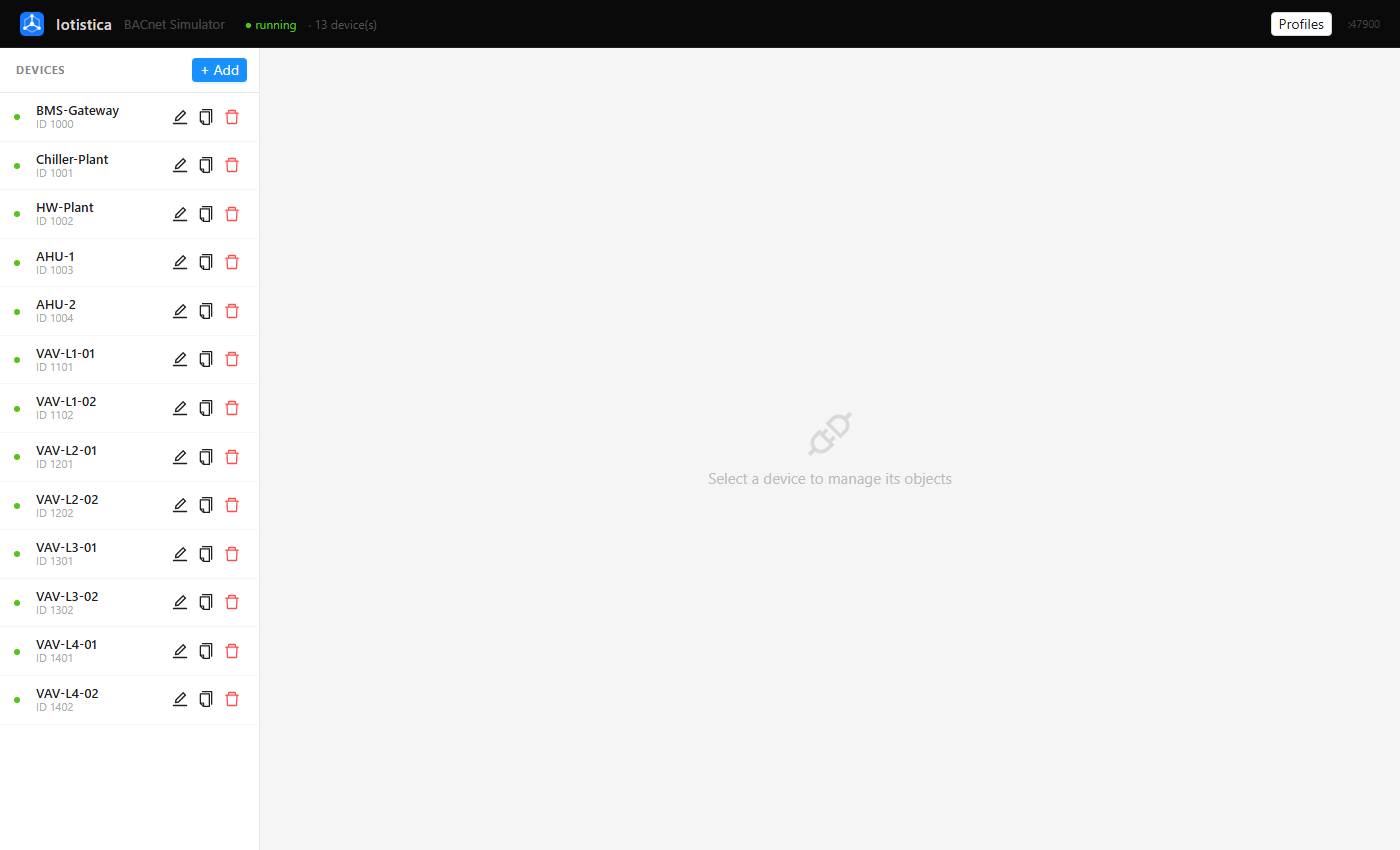
Devices
Each BACnet device is identified by a globally unique Device Instance (1–4,194,302). The simulator auto-increments this value when you add a new device so you never get a collision.
Adding a Device
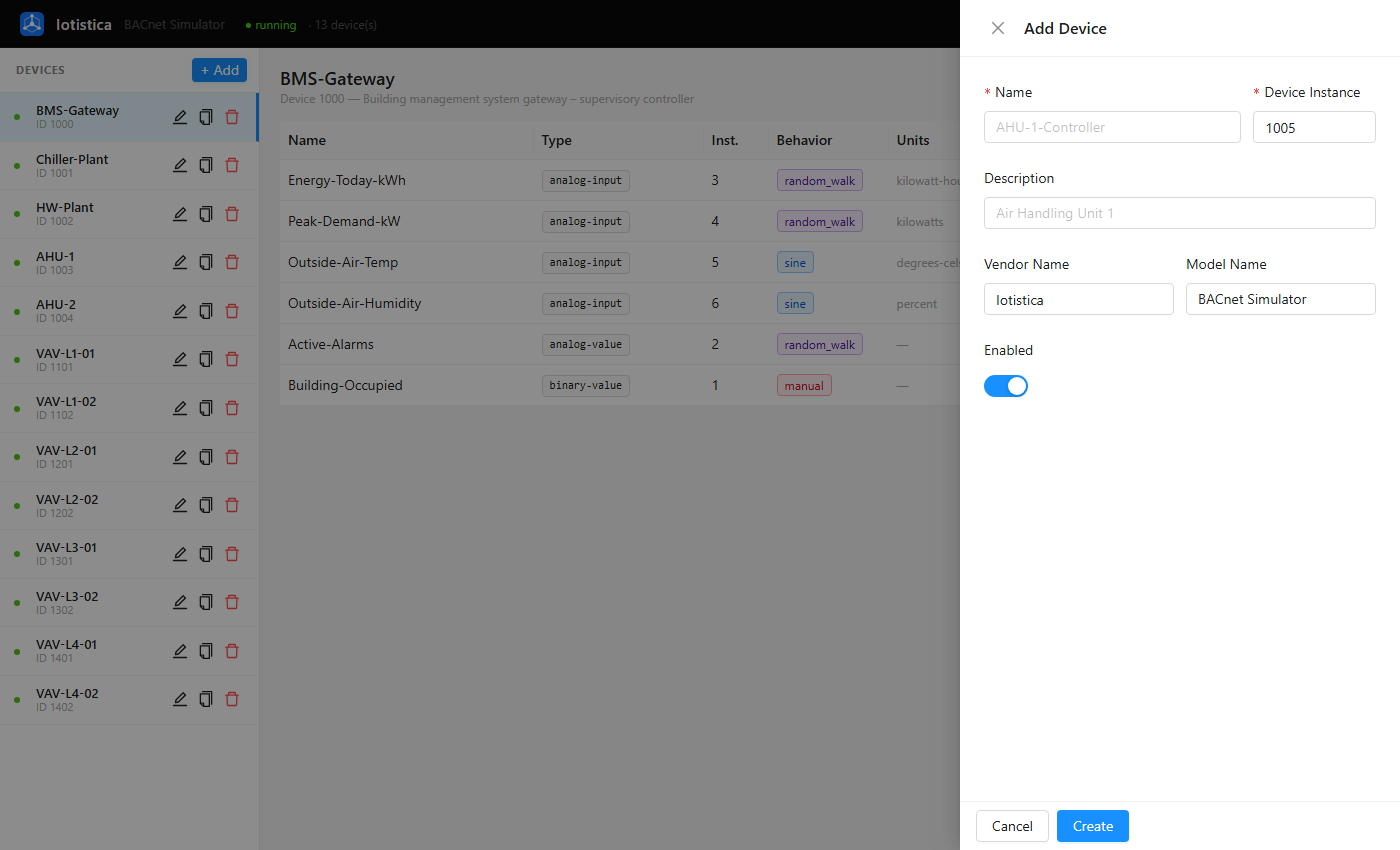
Click + Add in the sidebar. The drawer supports:
- Name — the BACnet
Object_Namefor the device - Device Instance — auto-filled to the next free ID
- Description — shown in the object header
- Vendor Name / Model Name — searchable from the BTL (BACnet Testing Laboratories) product database; search and select a known vendor to get a model dropdown
- Enabled — disable to remove the device from the BACnet network without deleting it
Device Actions
Each device in the sidebar has three icon buttons:
| Icon | Action |
|---|---|
| Edit | Open the device drawer to change any field |
| Copy | Duplicate the device and all its objects to a new instance ID |
| Delete | Remove the device and all its objects |
Objects
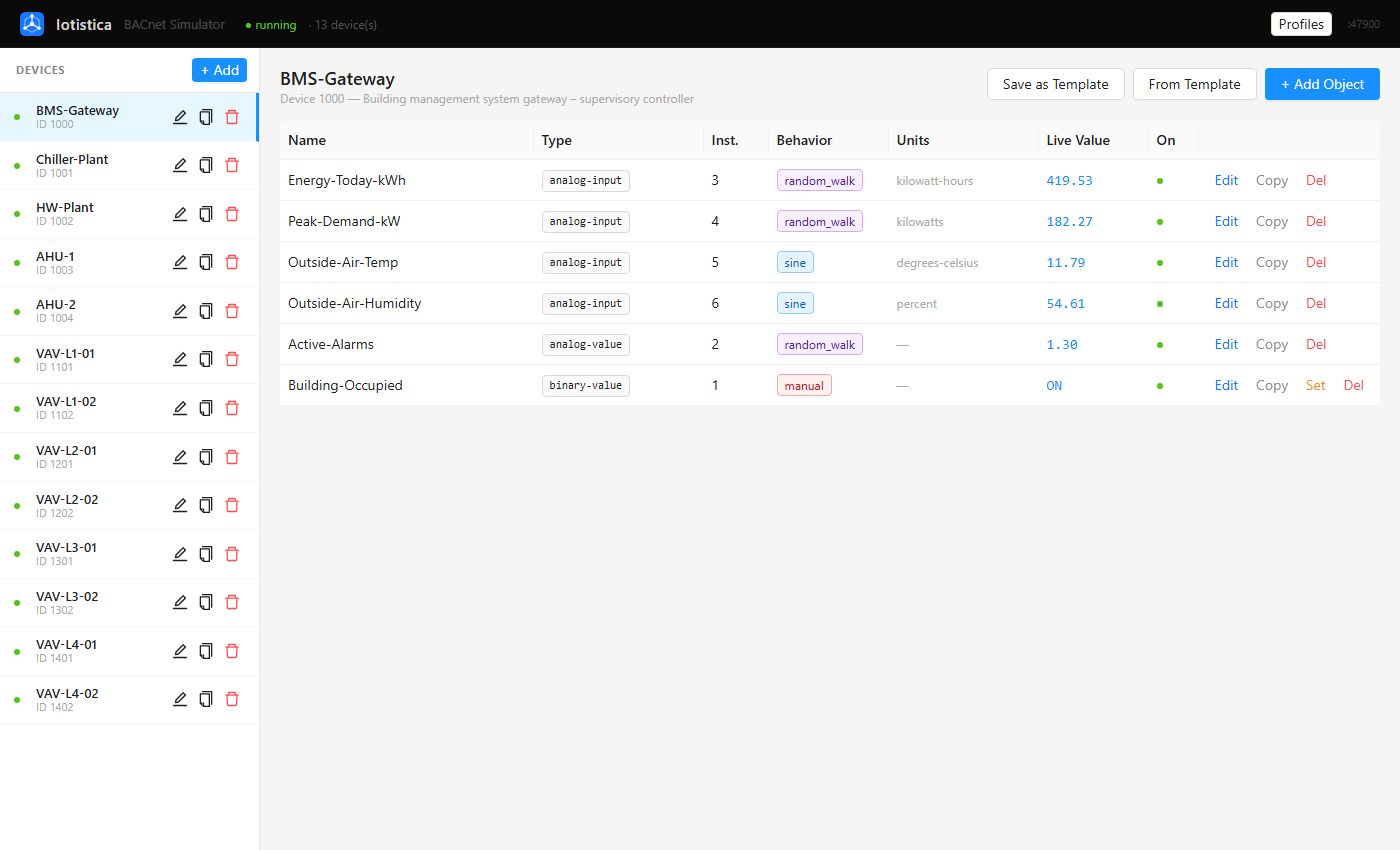
Selecting a device opens its object table. Objects are the BACnet data points inside a device — each has a type, an instance number, a name, a unit, and a behavior.
:::note Historical data
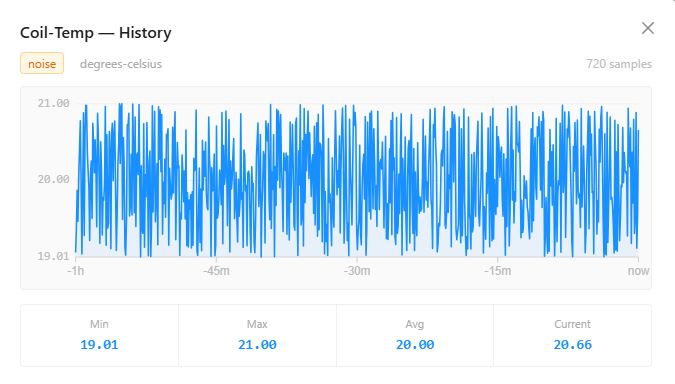
Each object records a rolling history of its Present_Value readings. Click any object row to view its value history chart — useful for verifying behavior patterns and spotting anomalies during testing.
 :::
:::
Object Types
| Type | Writable via BACnet? | Typical use |
|---|---|---|
analog-input | No | Sensor readings (temperature, flow, pressure) |
analog-output | Yes | Control outputs (valve position, fan speed) |
analog-value | Yes | Setpoints and calculated values |
binary-input | No | Status flags (run/stop, alarm) |
binary-output | Yes | Binary control commands |
binary-value | Yes | Occupancy flags, boolean setpoints |
Adding an Object
Click + Add Object to open the object drawer. Choose the type, assign an instance number, give it a name, select engineering units, and pick a behavior. See Behavior Types below.
Object Actions
| Button | Action |
|---|---|
| Edit | Reopen the drawer to change any field |
| Copy | Duplicate with instance = max + 1 and name "… Copy" |
| Set | (manual behavior only) Override the live value at runtime |
| Del | Remove the object |
Activity Log Panel
A global activity log panel sits at the bottom of the screen and shows events from all devices in a single stream, refreshing every 5 seconds. Each entry is tagged with the device it came from in a green chip.
Log entries are generated by:
- Objects added, updated, or deleted via the UI or REST API
- Value changes detected on each 5-second simulation tick (float changes ≥ 0.1, or any boolean flip)
- BACnet
WritePropertycommands received from clients
Entries are colour-coded by severity:
| Colour | Level | Meaning |
|---|---|---|
| Blue | INFO | Normal activity (object added, value updated) |
| Yellow | WARN | Non-critical issues (object deleted) |
| Red | ERROR | Failures requiring attention |
The panel displays the last 200 entries and auto-scrolls to the newest. Click the ▲ chevron in the header (or anywhere on the header bar) to collapse the panel; click again to expand it. Click Clear to wipe the in-memory view without affecting the device configuration.
Behavior Types
A behavior controls how an object's Present_Value changes over time. The simulation engine evaluates each object's behavior on every 5-second tick.
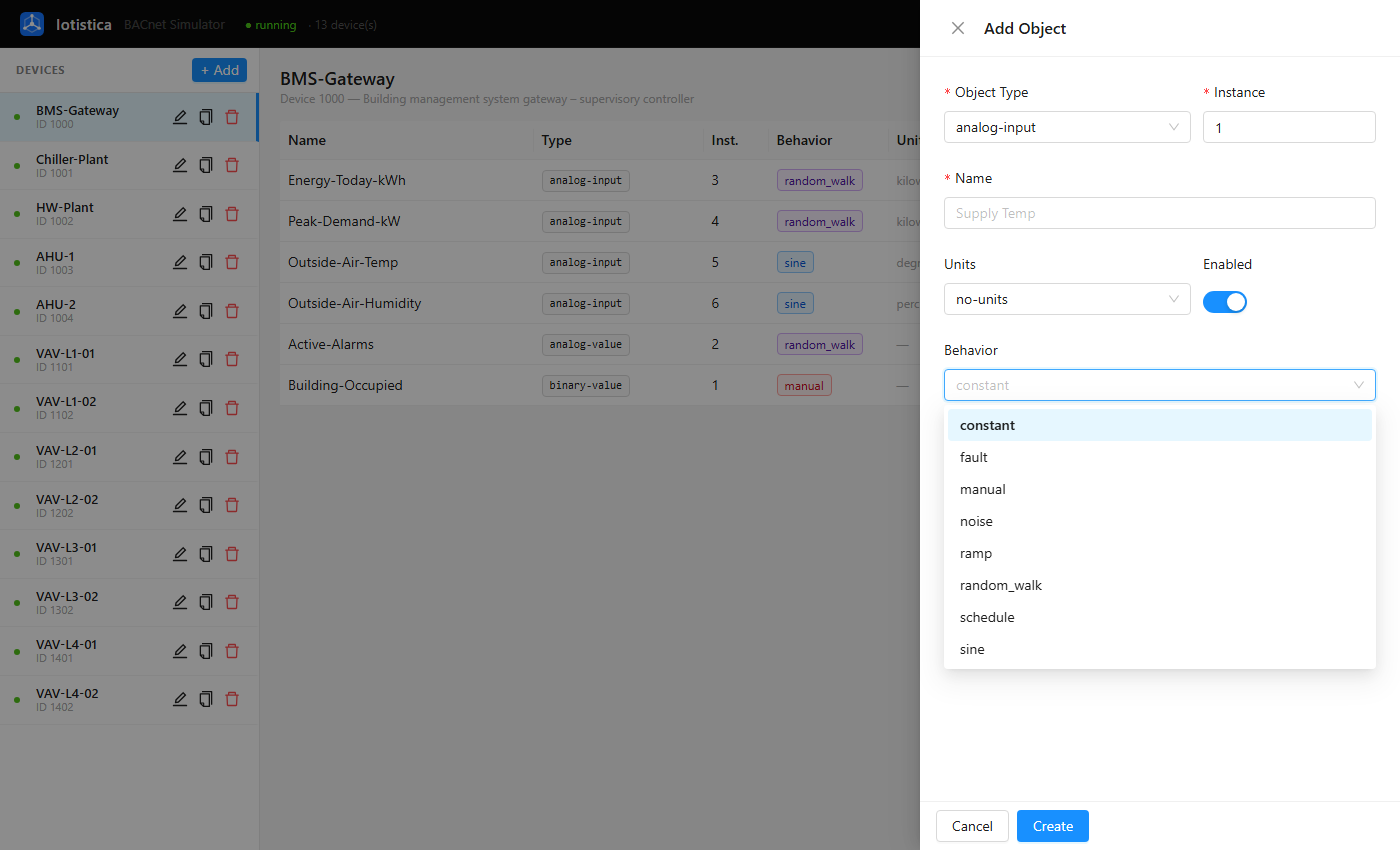
constant
Returns a fixed value that never changes. Use it for setpoints, ratings, or static flags that don't need to vary.
| Param | Description |
|---|---|
value | The fixed value to return |
Example — a heating setpoint permanently locked at 21 °C:
{ "value": 21 }
manual
Holds a value until you explicitly change it. The Set button in the objects table lets you push a new value at any time without editing the object. Use it for occupancy status, override commands, or any point you want to control by hand during a test.
Example — building occupancy flag, starts as occupied. Flip it to false during a demo to simulate the building going unoccupied and watch your HVAC setpoints shift.
sine
Generates a smooth sinusoidal wave based on the simulator's internal wall-clock time. Ideal for temperatures, solar loads, or any quantity that oscillates over a predictable period.
| Param | Description |
|---|---|
base | Centre value |
amplitude | Peak deviation from centre |
period_hours | Full cycle length in hours |
phase_hours | Time offset (shift the wave left or right) |
Example — outside air temperature that swings between 4 °C (at night) and 20 °C (midday) over a 24-hour day:
{ "base": 12, "amplitude": 8, "period_hours": 24 }
The value is base + amplitude × sin(…), so it peaks at 20 and dips to 4.
noise
Adds uniform random noise around a base value on every tick. Use it to make sensor readings feel realistic — a clean constant value rarely looks like a real sensor.
| Param | Description |
|---|---|
base | Centre value |
noise | ± maximum deviation per tick |
Example — a supply-air temperature sensor that reads around 13 °C but jitters slightly, as a real sensor would:
{ "base": 13, "noise": 0.4 }
Each tick the value is somewhere between 12.6 and 13.4.
random_walk
Drifts randomly from its current value by at most ±step each tick, clamped between min and max. Produces a more natural-looking time series than noise — good for energy counters or slow-changing analogs.
| Param | Description |
|---|---|
value | Starting value |
step | Maximum change per tick |
min / max | Hard clamp boundaries |
Example — a chiller's power draw that wanders realistically between 80 kW and 320 kW, starting at 200 kW:
{ "value": 200, "step": 8, "min": 80, "max": 320 }
Unlike noise, the value remembers where it was last tick, so you get a continuous wandering trace rather than independent random samples.
schedule
Returns different values based on the current time of day — the BACnet simulator equivalent of a BACnet Schedule object. Use it to test occupied/unoccupied transitions, HVAC setpoint changes, or lighting control sequences.
| Param | Description |
|---|---|
default | Value returned before the first time block |
blocks | List of { start: "HH:MM", value } entries, evaluated in order |
Example — heating setpoint that drops to 18 °C overnight, rises to 21 °C when the building opens at 07:00, and drops back at 18:00:
{
  "default": 18,
  "blocks": [
    { "start": "07:00", "value": 21 },
    { "start": "18:00", "value": 18 }
  ]
}
ramp
Linearly interpolates from one value to another over a fixed duration. With repeat: true it cycles continuously — useful for simulating startup/shutdown sequences, valve strokes, or motor speed ramps.
| Param | Description |
|---|---|
from | Starting value |
to | Target value |
duration_minutes | How long the ramp takes |
repeat | Restart the ramp after it reaches to |
Example — a cooling valve that strokes continuously from fully closed (0 %) to fully open (100 %) and back, taking 30 minutes per stroke:
{ "from": 0, "to": 100, "duration_minutes": 30, "repeat": true }
Use repeat: false to simulate a one-shot startup sequence — the value reaches to and stays there.
fault
Wraps any other behavior and randomly injects fault conditions. Use it to test alarm handling, fault detection logic, or BMS alert escalation without waiting for a real failure.
| Param | Description |
|---|---|
base_behavior | The underlying behavior to run during normal operation |
base_params | Parameters for the base behavior |
fault_type | spike — one out-of-range reading; stuck — value freezes at fault_value; offline — value drops to zero |
fault_value | The value reported during a spike or stuck fault |
mtbf_minutes | Mean time between faults (in minutes) |
fault_duration_seconds — How long a stuck or offline fault lasts |
Fault types explained:
| Type | What the sensor reports | How long | Real-world analogy |
|---|---|---|---|
spike | fault_value for one reading (5 s), then back to normal | Instant | A loose wire causing a momentary bad reading |
stuck | fault_value for fault_duration_seconds, then back to normal | Configurable | A frozen sensor reporting a wrong value continuously |
offline | 0 for fault_duration_seconds, then back to normal | Configurable | A sensor that loses power or goes offline |
Example — a coil temperature sensor that normally reads ~22 °C, but roughly once per hour produces a single spike reading of 85 °C (simulating a bad wire):
{
  "base_behavior": "constant",
  "base_params": { "value": 22 },
  "fault_type": "spike",
  "fault_value": 85,
  "mtbf_minutes": 60
}
Example — a flow sensor that normally wanders around 48 L/s, but gets stuck at 0 for 2 minutes roughly every 3 hours (simulating an intermittent sensor dropout):
{
  "base_behavior": "noise",
  "base_params": { "base": 48, "noise": 1.5 },
  "fault_type": "offline",
  "fault_value": 0,
  "mtbf_minutes": 180,
  "fault_duration_seconds": 120
}
Templates
Templates bulk-create a realistic set of objects for common HVAC and building equipment types in one click. Instead of adding a dozen objects by hand, pick a template and the simulator creates them all with sensible names, units, and behaviors pre-configured.
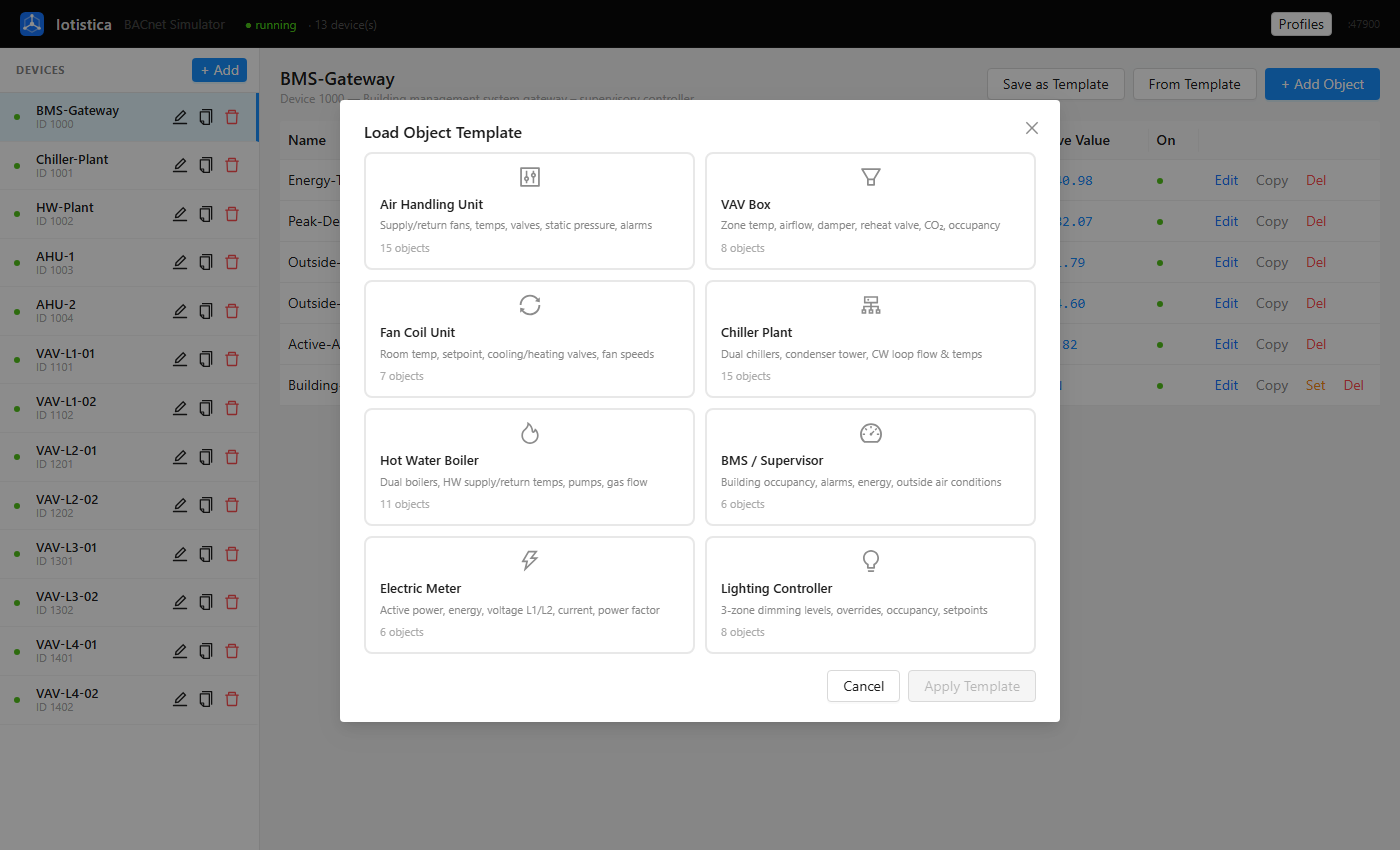
Built-in Templates
| Template | Objects | Description |
|---|---|---|
| Air Handling Unit | 15 | Supply/return fans, temps, valves, static pressure, filter alarms |
| VAV Box | 8 | Zone temp, damper position, reheat valve, CO₂, occupancy |
| Fan Coil Unit | 7 | Room temp, cooling/heating valves, fan speeds |
| Chiller Plant | 15 | Dual chillers, condenser tower, CW loop flow and temps |
| Hot Water Boiler | 11 | Dual boilers, HW supply/return temps, pumps, gas flow |
| BMS / Supervisor | 6 | Building occupancy, alarms, energy, outside air conditions |
| Electric Meter | 6 | Active power, energy, voltage, current, power factor |
| Lighting Controller | 8 | Zone dimming levels, overrides, occupancy setpoints |
Smart Suggestion
When you click From Template on a device that has a vendor and model set, the simulator matches the vendor/model name against a built-in keyword library and pre-selects the most appropriate template. For example, a Siemens PXC50 auto-selects the AHU template.
Custom Templates
After configuring a device's objects to your liking, click Save as Template to persist it to your browser's local storage. Custom templates appear at the top of the template picker and can be deleted individually.
Profiles
A profile is a snapshot of the entire simulator state — all devices and all their objects. Profiles let you switch between different test scenarios instantly without re-creating devices manually.
The active profile name is shown as a blue tag in the header next to the Iotistica logo. The header toolbar provides three profile actions:
| Button | Action |
|---|---|
| New | Clears all devices and starts a blank canvas. If the current state has unsaved changes, you are prompted to save first. |
| Save | Saves the current configuration. If a profile is already active, it is overwritten in place immediately. If no profile is active, a dialog prompts for a name and optional description. |
| Open | Opens the saved-profiles drawer. Click any profile to load it — this replaces the current configuration entirely. The drawer closes automatically after loading. |
Creating a Profile
- Set up devices and objects on the main canvas.
- Click Save in the header.
- Enter a Name (required) and an optional Description, then click Save Profile.
The profile captures every device and object as they are at that moment. The name appears as a blue tag in the header.
Overwriting a Profile
While a profile is active (its name is shown in the header), clicking Save overwrites it immediately with no confirmation dialog — the same behaviour as Save in any other application.
Loading a Profile
- Click Open in the header.
- Select a profile from the list.
This replaces the current device/object configuration entirely — useful for switching between test scenarios (e.g. switching from a chiller plant test to a VAV commissioning setup).
Starting Fresh
Click New to clear all devices and start with an empty canvas. If the current configuration has unsaved changes, you are prompted to save before proceeding. After confirming, all devices and objects are removed and the active profile tag is cleared from the header.
BACnet Read / Write
The simulator responds to standard BACnet/IP services on UDP port 47808.
Reading Values (ReadProperty)
Any BACnet client can issue a ReadProperty request to read the Present_Value of any object. The simulator responds with the current computed value from the most recent tick.
Client → ReadProperty(device=1001, object=analog-input:5, property=present-value)
Simulator → ACK: 11.79  (degrees-celsius)
Device-level properties such as Object_List, Object_Name, Vendor_Name, and Model_Name are also supported.
Writing Values (WriteProperty)
WriteProperty is supported on output and value object types:
| Writable | Not writable |
|---|---|
analog-output | analog-input |
analog-value | binary-input |
binary-output | |
binary-value |
When a write is received, the simulator:
- Accepts the value and responds with
SimpleAck. - Switches the object's behavior to manual and stores the written value persistently.
- The written value survives simulation ticks — it will not be overwritten by a previously configured sine or noise behavior.
Client → WriteProperty(device=1001, object=analog-output:10, property=present-value, value=75.0)
Simulator → SimpleAck
Writing to an input object returns a write-access-denied error, matching real BACnet device behaviour.
Device Discovery (WhoIs / I-Am)
The simulator responds to BACnet WhoIs broadcasts. Each virtual device issues its own I-Am response, so BACnet browsers and controllers discover all devices on the network automatically.