Terminal
The Terminal page gives you a live shell session directly inside the admin UI — no SSH client or separate tool needed. It connects over WebSocket to a PTY running on the device and renders a fully functional terminal emulator in the browser.
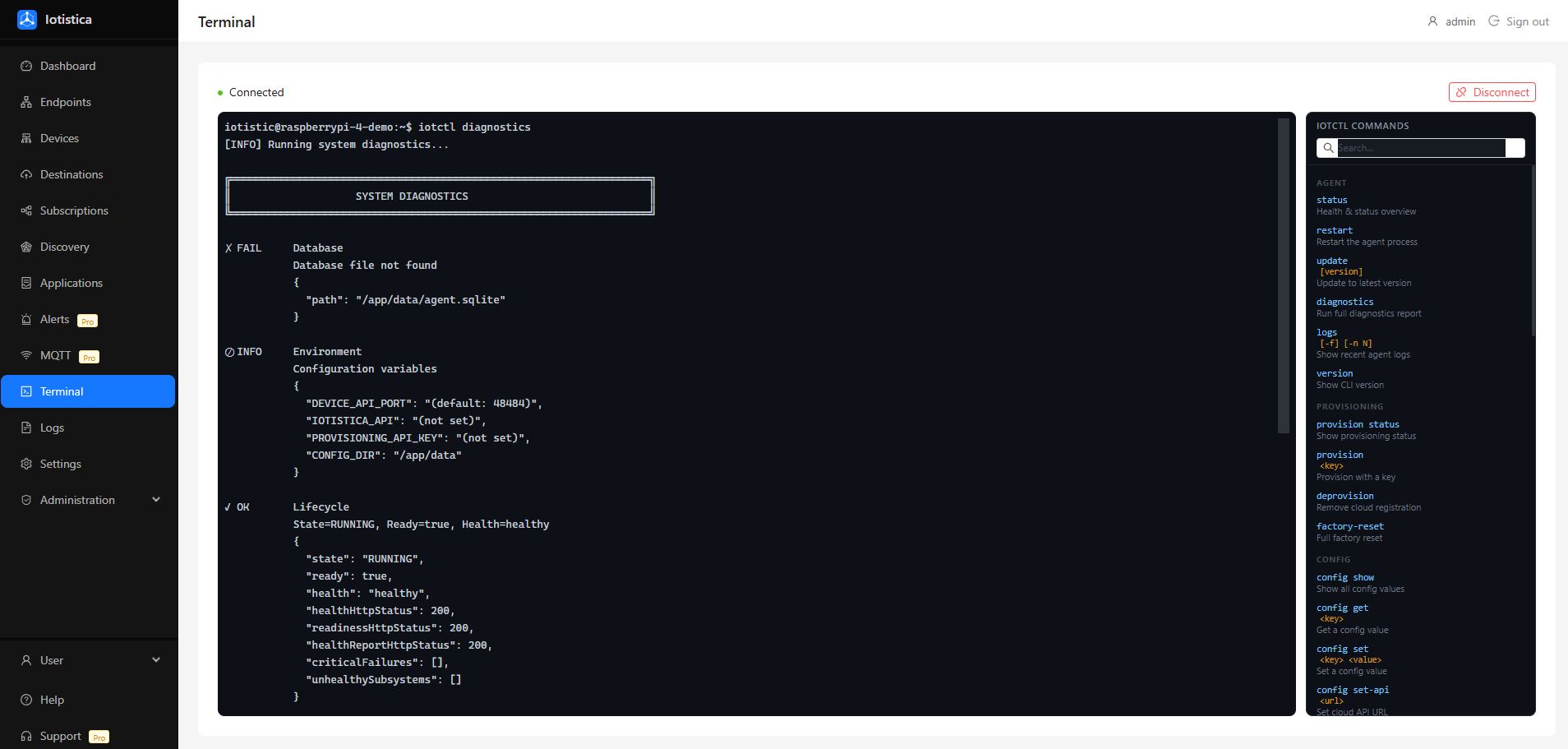
Connecting
The terminal connects automatically when you open the page. The status indicator in the top-left shows the connection state:
- Connected (green) — the WebSocket session is active and the shell is ready.
- Connecting… (pulsing) — establishing the connection.
- Disconnected — the session ended (shell exited or network dropped). Click Reconnect to start a new session.
The session runs as the same OS user the agent process uses (iotistic by default), on the device itself. It is authenticated with the same admin session cookie as the rest of the admin UI — no additional login is required.
Command Reference Panel
The right panel lists every iotctl command organised by category, with a short description for each. Use it as a quick-reference while working in the shell, or to discover commands you haven't used before.
Searching
Type in the Search… box to filter commands by name or description. The list updates instantly as you type.
Running a Command
| Action | What happens |
|---|---|
| Click a command row | Types the command into the terminal (Ctrl+U clears any current input first). Press Enter to run, or edit the line. |
| Click the ▶ button | Executes the command immediately for commands that need no arguments. For commands that require an argument (shown in amber, e.g. <id>), it types the command and leaves the cursor ready for you to add the value. |
Commands that require arguments — like iotctl apps start <id> — always type rather than execute immediately so you can supply the correct value before running.
iotctl Command Groups
| Group | What it covers |
|---|---|
| Agent | Health status, restart, update, diagnostics, logs, version |
| Provisioning | Provision / deprovision with a key, factory reset |
| Config | Read and write agent configuration values |
| Applications | List, start, stop, restart, inspect, and purge applications |
| Services | Per-container control and log streaming |
| Devices | Manage protocol adapters (Modbus, OPC-UA, MQTT, SNMP), run discovery |
| Database | Backup, restore, verify, and prune the agent's SQLite database |
| System | Offline buffer status, memory diagnostics |
Common Commands
# Check agent health at a glance
iotctl status

# Run a full diagnostics report
iotctl diagnostics

# List running applications and their services
iotctl apps list

# Stream logs for a specific service
iotctl services logs <service-id> -f

# Show provisioning status
iotctl provision status

# Create a database backup
iotctl db backup
Security
The terminal WebSocket endpoint (/v1/shell) requires an active admin session. Unauthenticated requests are rejected with HTTP 401 before a shell is spawned. The shell runs as the agent process user — it does not grant root access beyond what that user already has.