MQTT Broker
The MQTT Broker section gives you live visibility into the Mosquitto broker running alongside the agent — browse every active topic, inspect message payloads, track throughput and client counts in real time, and manage per-device credentials. This is an Agent Pro feature.
Broker Monitor
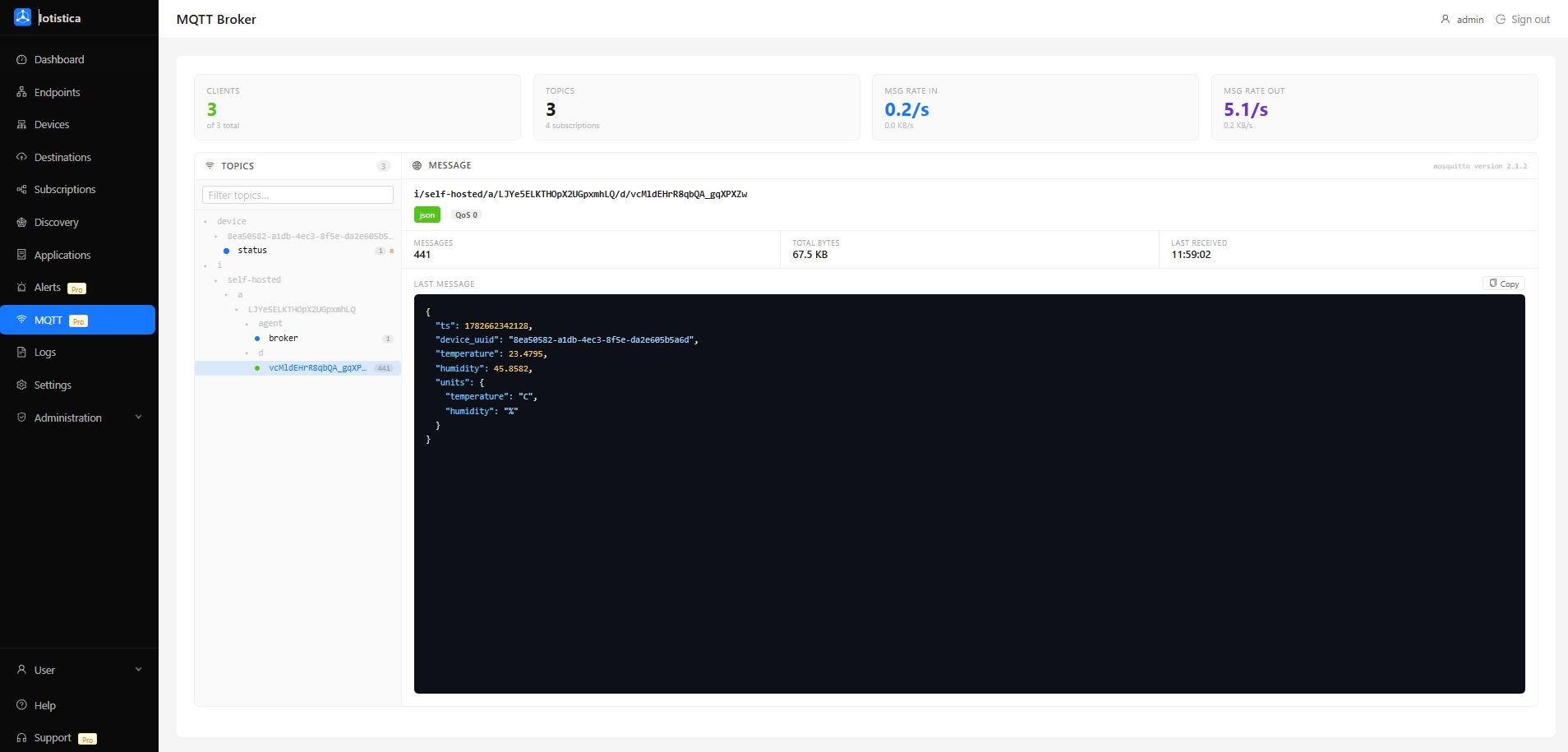
The Broker Monitor is the main view. It connects to the local Mosquitto broker and refreshes every five seconds — no manual refresh needed.
Metric Cards
Four summary cards at the top of the page give you an instant health snapshot:
| Card | What it shows |
|---|---|
| Clients | Number of currently connected clients out of the total registered |
| Topics | Count of topics that have received at least one message |
| Msg rate in | Messages per second arriving at the broker, plus throughput in KB/s or MB/s |
| Msg rate out | Messages per second delivered to subscribers, plus outbound throughput |
All four values update on the same five-second polling cycle.
Topic Tree
The left panel shows every active topic as a collapsible tree. Topics are grouped by their path segments — for example devices/site-a/sensor-1/temperature appears nested under devices → site-a → sensor-1.
Each node displays:
- Message count — total messages received on that topic
- Last payload — a preview of the most recent message
- Retain badge — shown when the topic has a retained message
Use the filter input at the top of the tree to search by topic name. The tree narrows in real time as you type, matching any segment of the full topic path.
Click any node to load its full details in the message viewer on the right.
Message Viewer
The right panel shows the details of the selected topic:
- Full topic path — the complete topic string
- Last payload — displayed as formatted JSON when the content is valid JSON, otherwise as plain text or a binary indicator
- QoS level — the Quality of Service level of the last message (
0,1, or2) - Retain flag — whether the broker is holding this message for new subscribers
- Message count and byte count — cumulative totals since the monitor started
The viewer updates automatically each time a new message arrives on the selected topic.
Connection State
If the agent cannot reach the local broker, a warning banner appears at the top of the page and the metric cards show dashes. The monitor retries the connection automatically — the banner clears as soon as the broker is reachable again.
:::info Agent Pro required The MQTT Broker Monitor is available in Agent Pro only. Community Edition devices will see an upgrade prompt in place of the monitor. Visit iotistica.com/solutions to compare plans. :::
MQTT Users
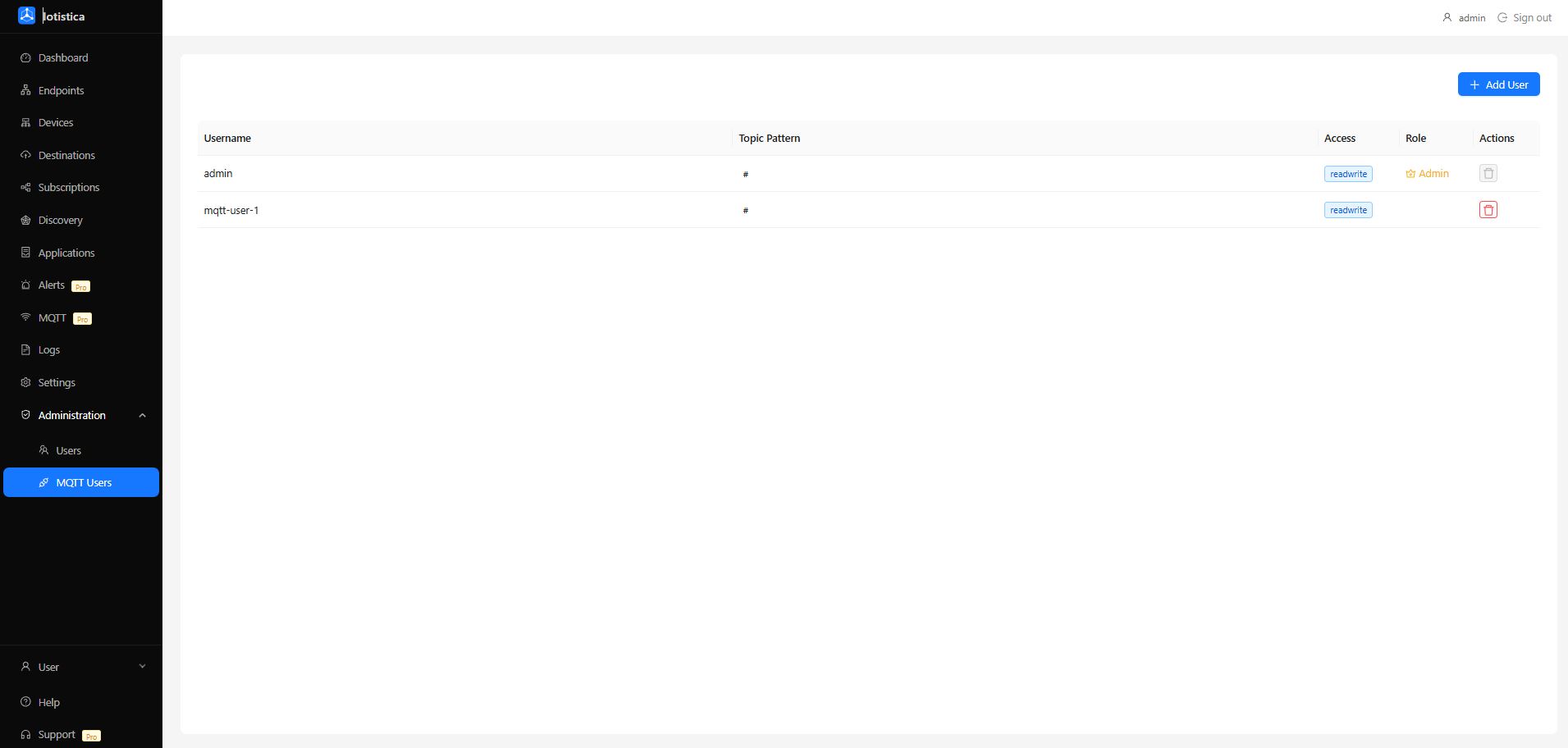
The MQTT Users page manages the credentials that control who and what can connect to the local broker. Every endpoint the agent manages gets its own isolated MQTT user — devices can only publish and subscribe to their own topics.
User Table
| Column | Description |
|---|---|
| Username | The MQTT client identifier used to authenticate with the broker |
| Topic pattern | The topic prefix this credential is allowed to use, e.g. devices/sensor-1/# |
| Access | read — subscribe only; write — publish only; readwrite — both |
| Role | Endpoint — auto-created for a managed endpoint; Custom — manually created credential |
Endpoint users are created and removed automatically as endpoints are added and deleted. They cannot be edited manually.
Adding a Credential
Click New User in the top-right corner. Fill in:
- Username — the client ID the device will use to connect
- Password — the broker password; stored as a hashed value, never in plaintext
- Topic pattern — the topic prefix to restrict this credential to (leave blank to allow all topics)
Click Create to save. The new credential is active immediately — no broker restart required.
Removing a Credential
Click the Delete icon on a custom user row and confirm the prompt. The credential is revoked immediately; any client currently connected with that username will be disconnected.
Endpoint credentials are managed automatically and cannot be deleted from this page. Remove the endpoint itself from the Endpoints page to revoke its broker access.
Related Docs
- Endpoints — configuring industrial protocol connections, including MQTT broker subscriptions
- Subscriptions — routing data from endpoints to destinations
- Logs & Audit — system logs and session audit