Destinations
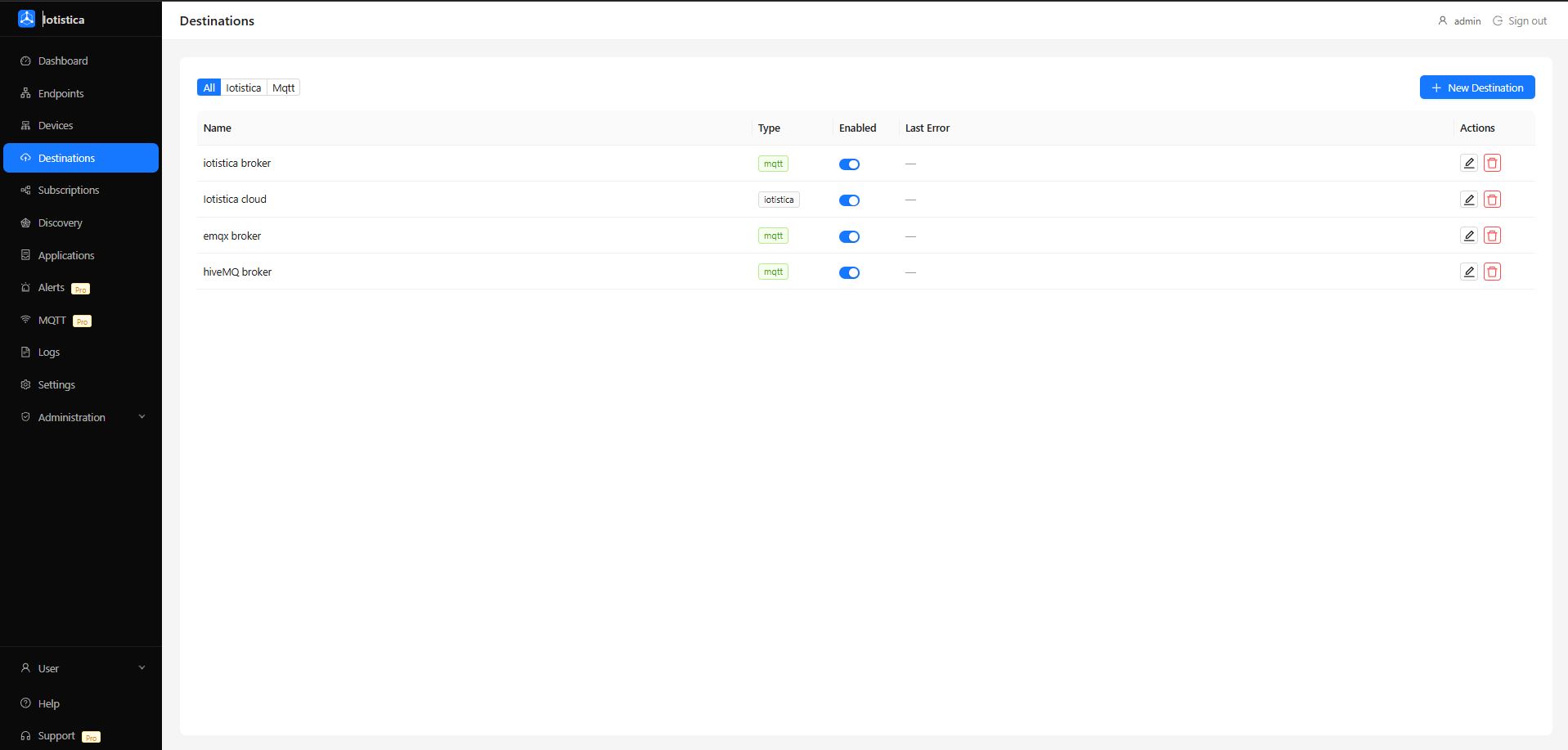
A destination is a named connection to a service where the agent sends data. You configure it once and then wire it to endpoint data through subscriptions.
Supported Types
| Type | Best For |
|---|---|
| MQTT | Any MQTT broker — local Mosquitto, cloud, or a managed service |
| InfluxDB | InfluxDB v2 time-series database for metrics and dashboards |
| Azure IoT Hub | Microsoft Azure cloud integration |
| AWS IoT Core | Amazon Web Services cloud integration |
| GCP IoT Core | Google Cloud Platform integration |
Adding a Destination
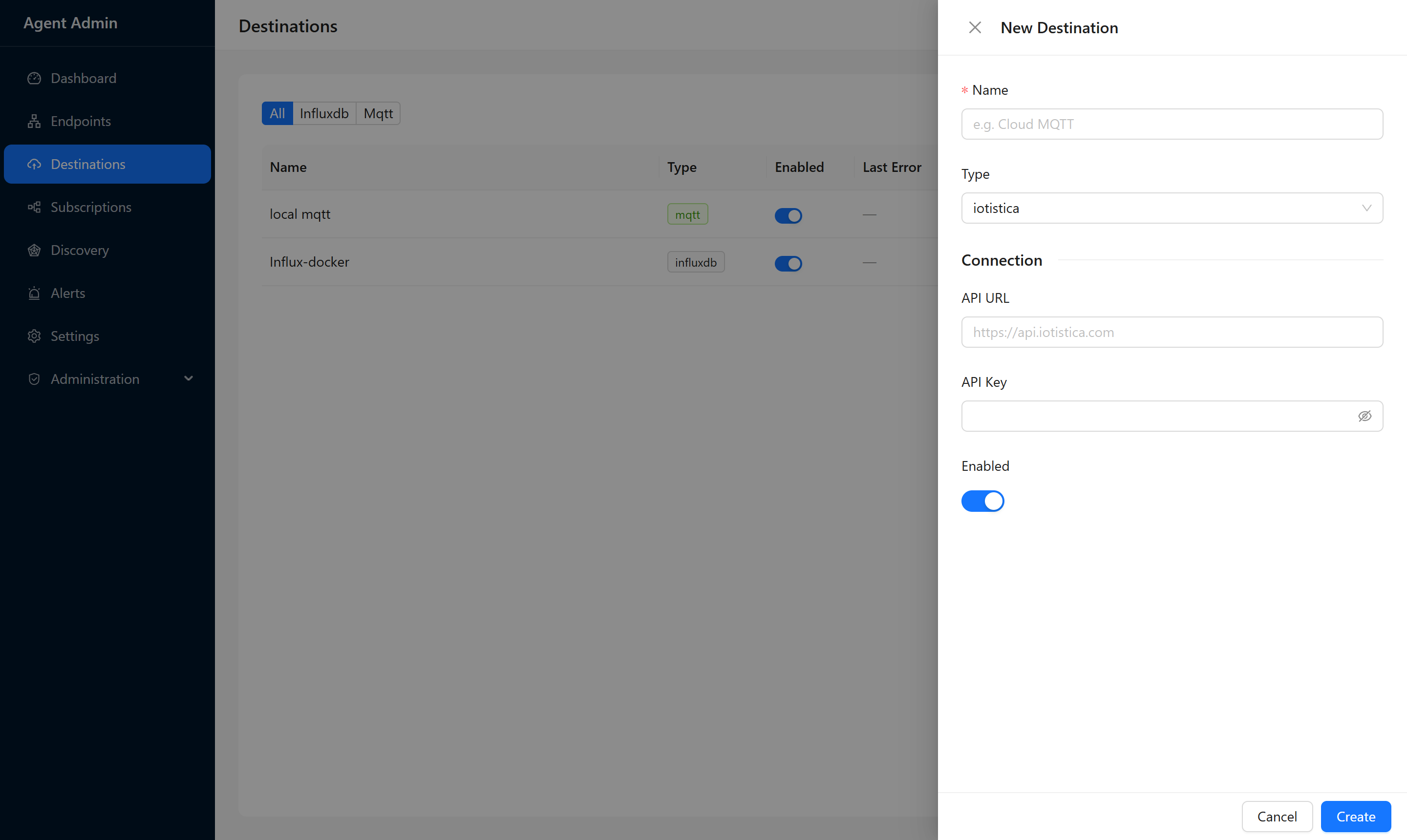
- Go to Destinations in the sidebar and click New Destination.
- Give it a descriptive name — something like
Local MosquittoorProduction InfluxDB. - Select the type and fill in the connection settings.
- Click Save.
The destination appears in the list. It will connect when a subscription starts routing data to it.
Configuration by Type
MQTT
| Field | Description |
|---|---|
| Host | Broker hostname or IP address |
| Port | Default 1883 (or 8883 for TLS) |
| Client ID | Unique ID for this agent on the broker. Leave blank to auto-generate. |
| Username | Leave empty if the broker has no authentication |
| Password | Broker password |
| TLS | Toggle on for encrypted connections |
If you're sending data to a local Mosquitto broker on the same machine, use 127.0.0.1 as the host. Make sure the agent's MQTT client ID is different from any other clients connecting to the same broker.
InfluxDB
| Field | Description |
|---|---|
| URL | InfluxDB base URL, e.g. http://192.168.1.100:8086 |
| Token | API token from InfluxDB (Data → API Tokens) |
| Organization | Your InfluxDB organization name |
| Bucket | Target bucket where data will be written |
| Measurement | Default measurement name (can be overridden per subscription) |
When subscribing endpoint data to InfluxDB, use the tags payload format. This maps each reading's name to an InfluxDB field and uses the device name as a tag — which is what you want for time-series queries.
Azure IoT Hub
Paste the device connection string from your Azure IoT Hub. You can find it in the Azure portal under IoT Hub → Devices → [your device] → Primary Connection String.
AWS IoT Core
You'll need three files from the AWS IoT console (downloaded when you register a device):
- Device certificate (
.pem.crt) - Private key (
.pem.key) - Root CA certificate
Paste or upload these in the destination configuration form.
GCP IoT Core
Requires a service account key (JSON) and the full device registry path from Google Cloud Console.
Enabling and Disabling
Toggle the switch in the destination row to enable or disable it without deleting the configuration. When disabled, all subscriptions pointing to that destination stop sending data.
Filtering by Type
Use the type filter buttons at the top of the Destinations page to show only a specific type (MQTT, InfluxDB, etc.). The filter buttons only appear for types you actually have configured.
Related Docs
- Subscriptions — connect a destination to your endpoint data
- Endpoints — where the data comes from