Logs & Audit
The agent gives you three observability surfaces: a system-wide Logs page, per-container log drawers inside Applications, and a session audit trail on the Users page.
System Logs
The Logs page collects output from the agent process itself — startup events, sync activity, MQTT connection state, provisioning steps, and any errors the runtime encounters.
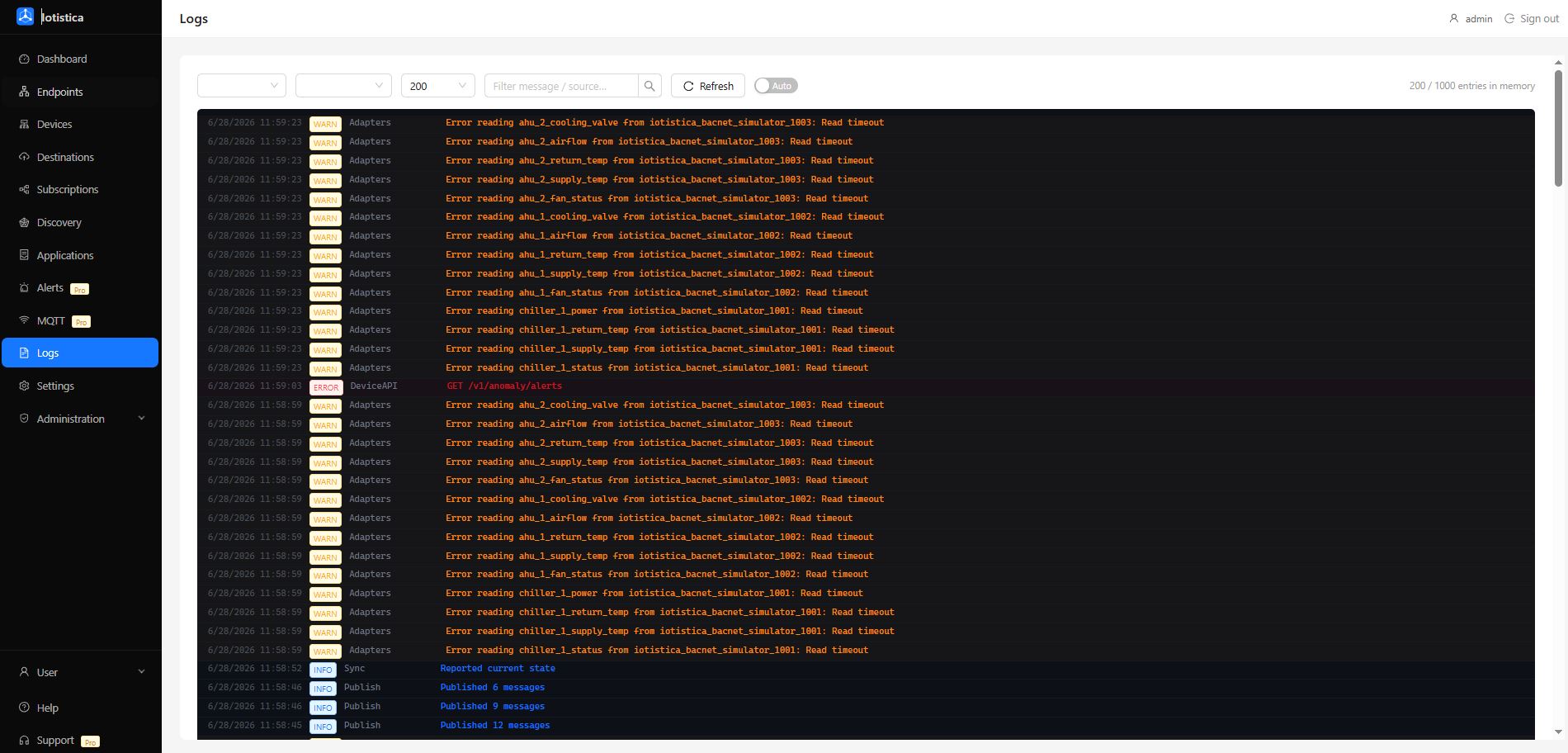
Open Logs in the sidebar to see a live-updating stream of entries. Each row shows a timestamp, a severity level (info, warn, error, debug), and the log message. Use the search bar at the top to filter by keyword or level.
Container Logs
Every service running inside an Application writes its output to Docker's log driver. Click the Logs button (list icon) on any service row to open a full-height drawer that streams that container's output in real time — no SSH or command line required.
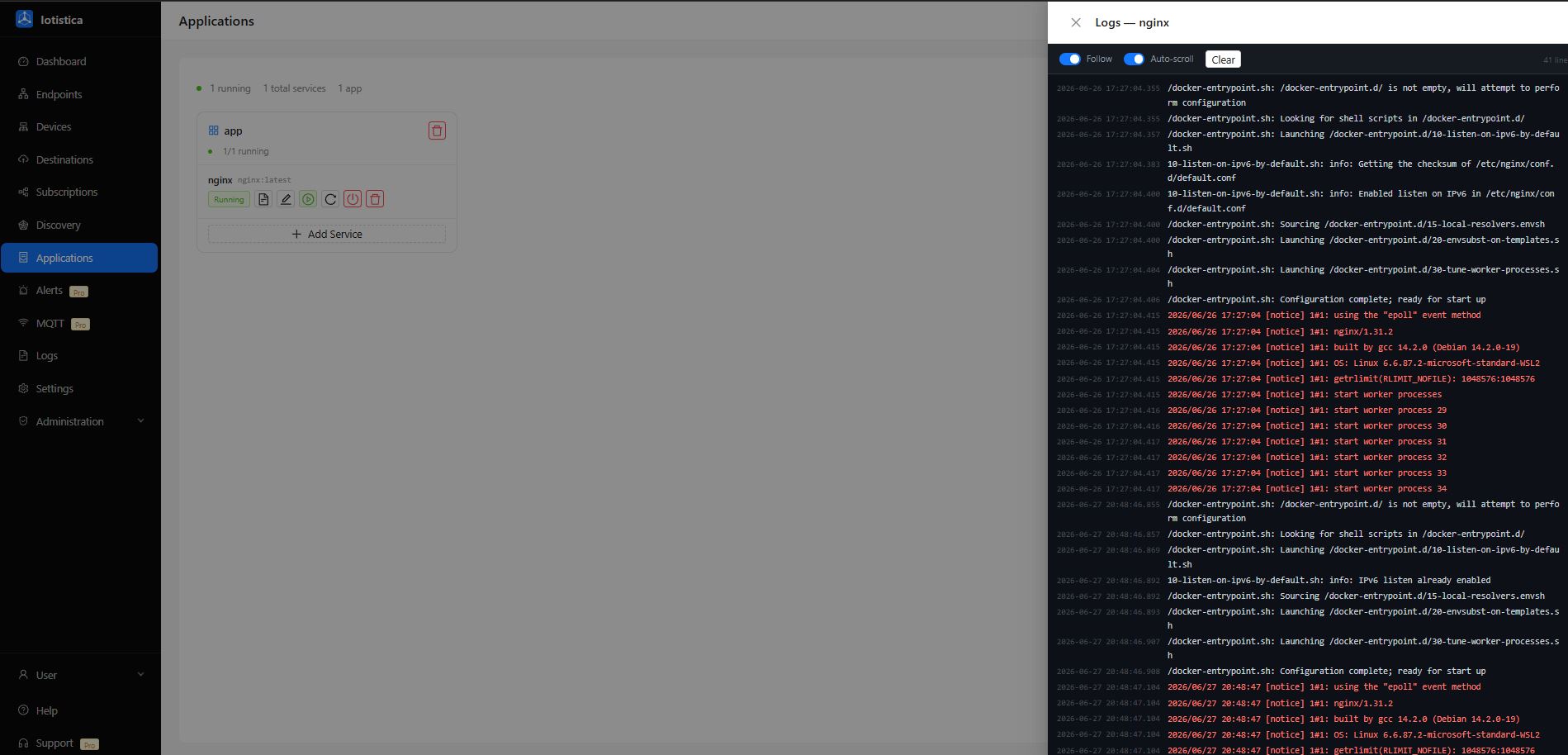
The drawer connects immediately and loads the last 200 lines of existing output. New lines arrive automatically as long as the drawer is open.
Reading the Output
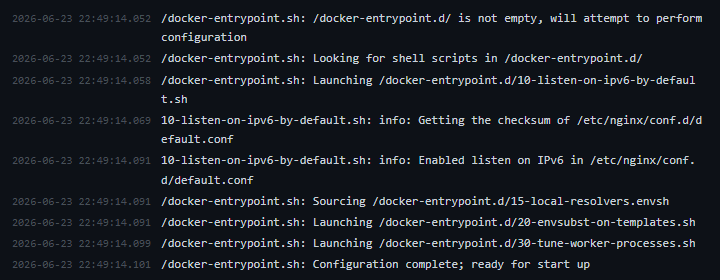
| Element | Description |
|---|---|
| Timestamp (grey, left) | Time Docker recorded the line — YYYY-MM-DD HH:MM:SS.mmm |
| White text | Standard output (stdout) — normal container output |
| Red text | Standard error (stderr) — warnings, errors, crash messages |
The viewer holds up to 1,000 lines in memory; older lines are discarded as new ones arrive.
Toolbar Controls

| Control | Description |
|---|---|
| Follow | Keeps a live connection open so new lines stream in automatically. Turn off for a static snapshot. |
| Auto-scroll | Scrolls to the bottom each time a new line arrives. Turn off to hold your position while reading earlier output. |
| Clear | Wipes the visible buffer without affecting Docker's log history. Reopen the drawer to fetch a fresh tail. |
| Line counter | Shows how many lines are currently in the buffer. Resets on clear. |
Viewing Logs for a Stopped Container
If a container has exited, its log history is still available in Docker's buffer. Open the log viewer and turn Follow off — the viewer fetches the tail of output written before the container stopped. This is the fastest way to diagnose a crash-on-startup.
User Sessions
The agent records a session entry each time someone logs into the admin UI. Open the Users page and switch to the Sessions tab to see the full audit trail.
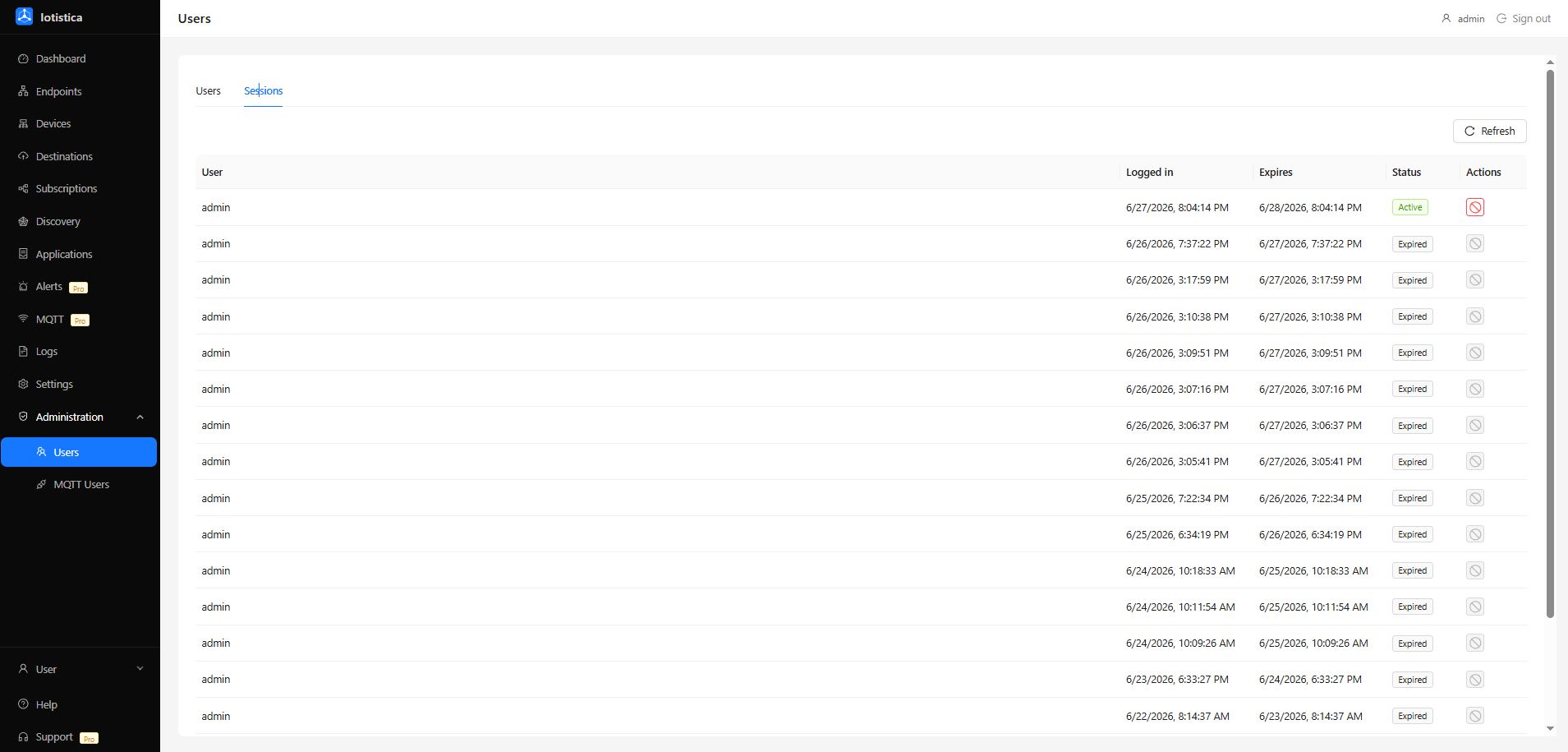
Each row shows the username, when the session was created, when it expires, and whether it is currently active. Active sessions can be revoked immediately using the button on the right — the user is logged out on their next request.
Related Docs
- Applications — deploying and managing containers
- Users — admin user management and session audit
- Alerts — anomaly alerts for sensor data