Applications
The Applications page lets you deploy and manage Docker containers directly from the agent's web interface — no command line needed. It is roughly equivalent to what Portainer does, but built into the agent itself.
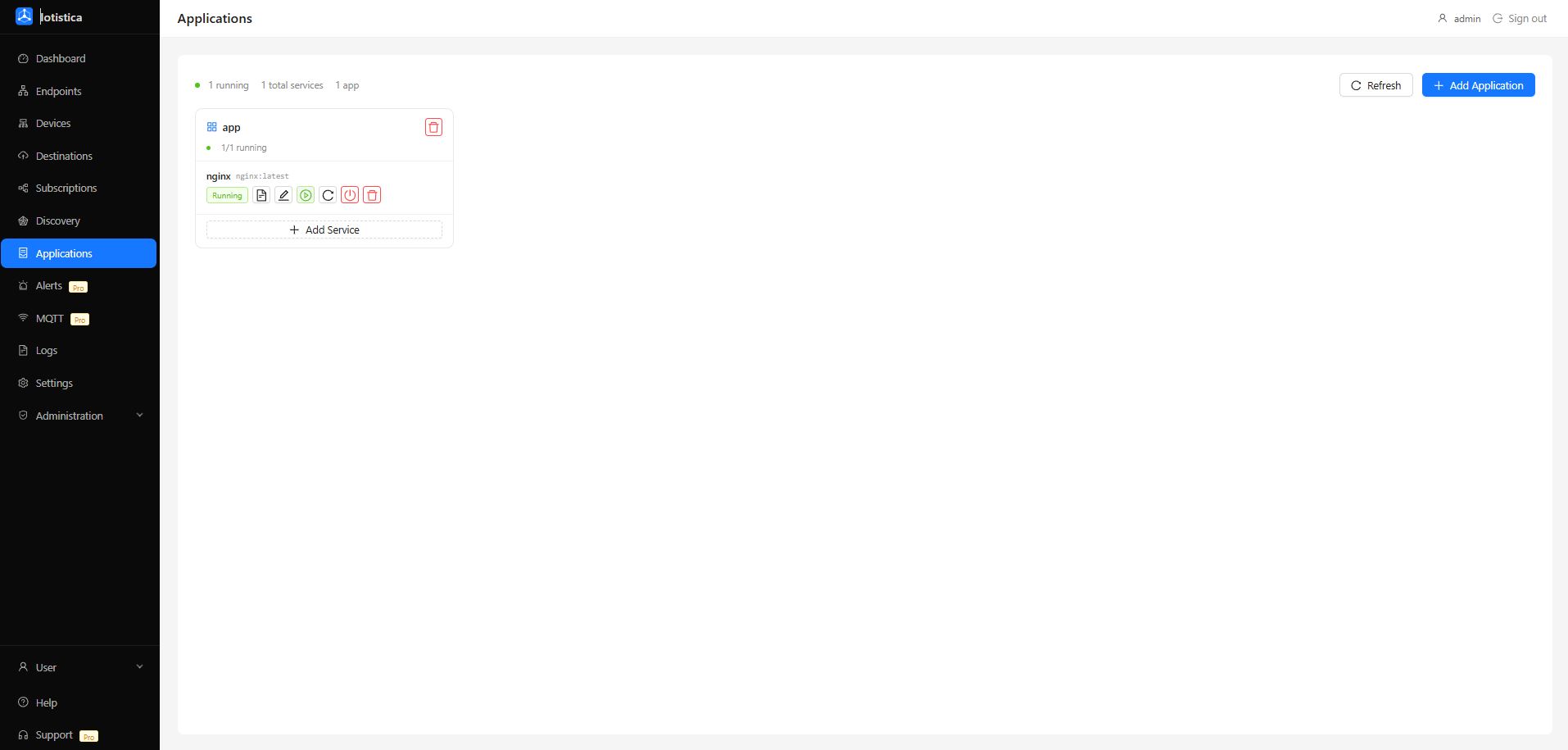
Applications are organised as a two-level hierarchy:
- Application — a logical group, like a project name in Docker Compose. An application has a name and contains one or more services.
- Service — a single Docker container running a specific image. One application can have many services.
App Marketplace
The fastest way to deploy a common IoT or monitoring application is through the App Marketplace. Click the Marketplace button in the top-right corner of the Applications page to open it.
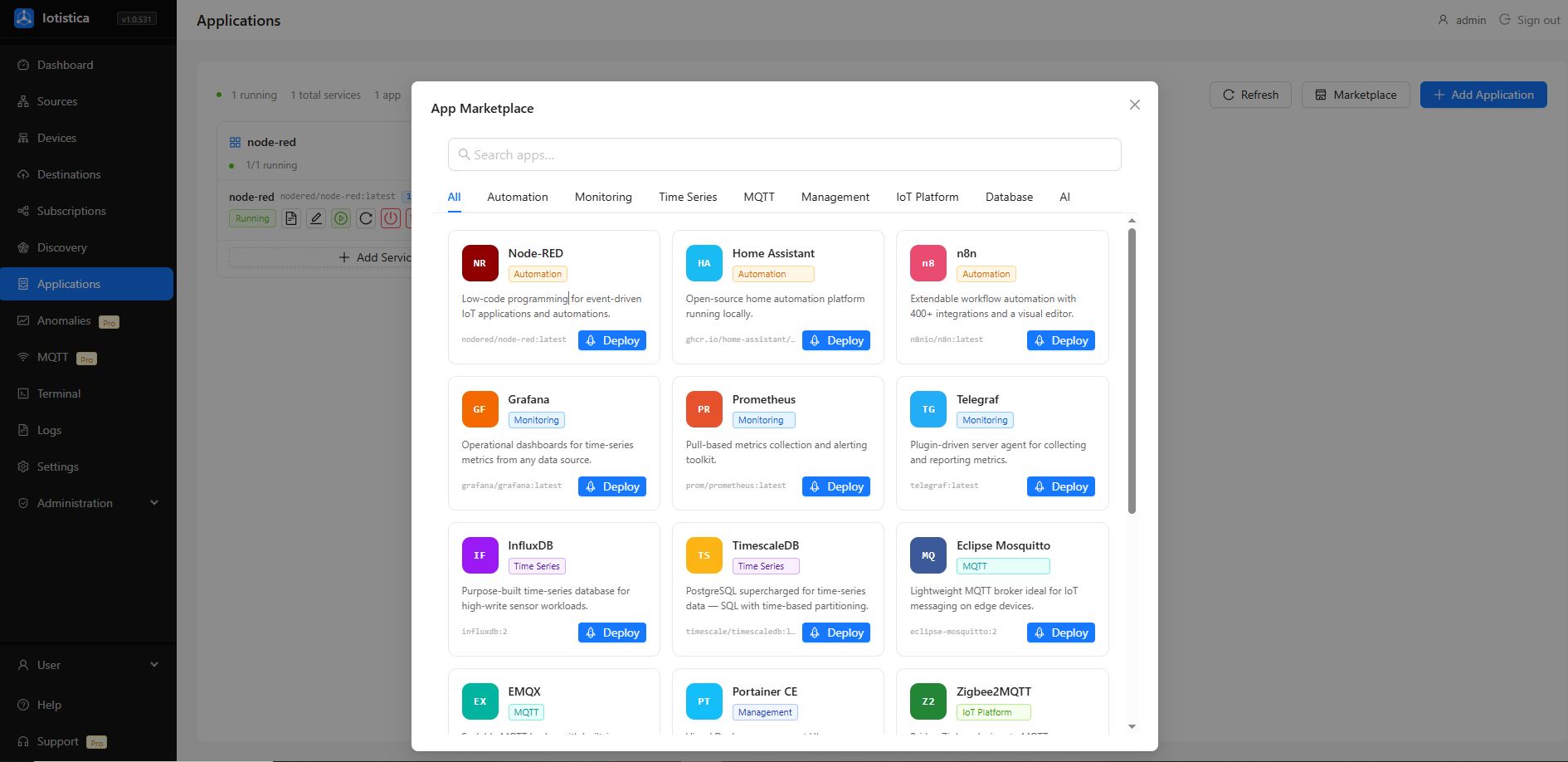
The marketplace includes a curated set of ready-to-run applications with pre-filled Docker images and sensible defaults:
| Category | Apps |
|---|---|
| Automation | Node-RED, Home Assistant, n8n |
| Monitoring | Grafana, Prometheus, Telegraf |
| Time Series | InfluxDB, TimescaleDB |
| MQTT | Eclipse Mosquitto, EMQX |
| Management | Portainer CE |
| IoT Platform | Zigbee2MQTT |
Use the Search bar to filter by name, or click a category tab to browse by type. Click Deploy on any card to deploy that application immediately with its default configuration. The application appears in the grid and you can edit its services afterwards if you need to customise ports, environment variables, or volumes.
Deploying an Application
Click Add Application in the top-right corner. A drawer opens where you configure the application and its initial services.
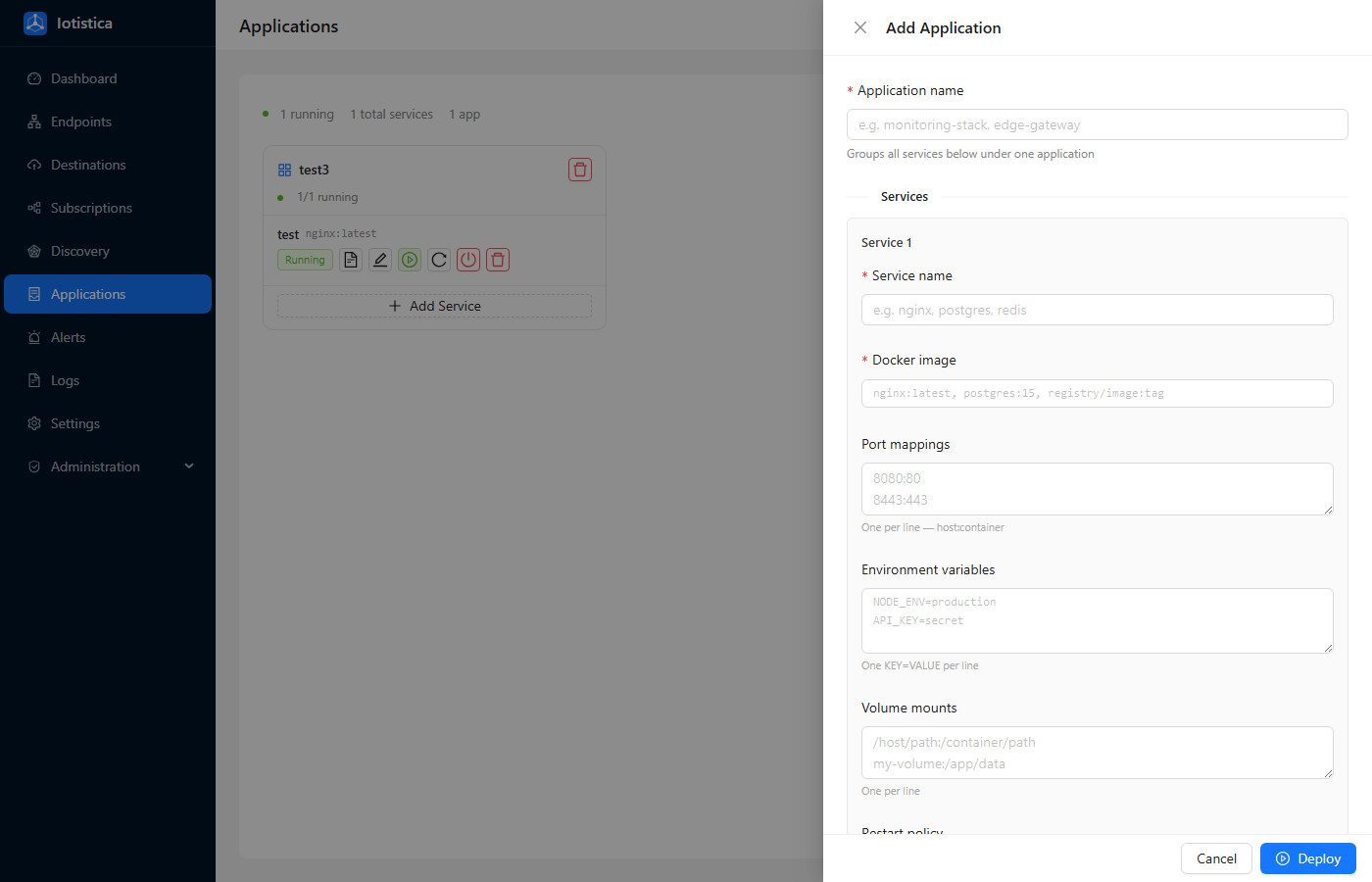
Application Name
Give the application a name that describes what it does — for example Monitoring Stack, Edge Gateway, or Postgres Database. The name is used to group services visually and to label the Docker containers the agent creates.
Services
Every application needs at least one service. Fill in the fields for each service:
| Field | Description |
|---|---|
| Service name | A short identifier for this container — postgres, grafana, redis. |
| Docker image | The image to pull and run, e.g. postgres:16, grafana/grafana:latest. |
| Port mappings | One host:container mapping per line, e.g. 5432:5432. Leave blank if no ports need to be exposed. |
| Environment variables | One KEY=VALUE per line. Required for images that need runtime config (like POSTGRES_PASSWORD). |
| Volume mounts | One host_path:container_path per line, e.g. /data/postgres:/var/lib/postgresql/data. |
| Restart policy | What to do if the container exits. unless-stopped is the default for long-running services. |
Click Add Service inside the drawer to add more services to the same application. Use the Remove link on any service card to remove it before saving.
When you click Deploy, the agent saves the application configuration, pulls any missing images, and starts the containers. The card appears immediately with a Creating status that updates once the containers are running.
Some images require mandatory environment variables to start. For example, postgres requires at least POSTGRES_PASSWORD=yourpassword. If a service shows an ImagePullBackOff or StartFailure error tag, hover over it to read the full error message.
The Application Card
Each application appears as a card. The card header shows the application name and a Remove button (trash icon) to delete the whole application.
Below the header, the card lists every service with its current status and a row of action buttons.

Status Badges
| Badge | Meaning |
|---|---|
| Running (green) | The container is up and healthy |
| Stopped (orange) | The container exists but is not running |
| Error (red) | The container failed to start or keeps crashing |
| Creating (blue) | The image is being pulled or the container is starting |
| Unknown | State could not be determined from Docker |
Service Action Buttons
Each service row has five action buttons, left to right:
| Button | Action |
|---|---|
| Logs (list icon) | Open the log viewer for this container — see Audit |
| Edit (pencil icon) | Edit the service config — image, ports, env vars, volumes, restart policy |
| Start (play icon) | Start a stopped container |
| Restart (reload icon) | Restart a running container |
| Stop (power icon) | Stop a running container |
| Remove (trash icon) | Stop and permanently remove this service |
Start and Stop are disabled when the action would have no effect (cannot start a running container or stop one that is already stopped).
Adding a Service to an Existing Application
To add a new container to an existing application without redeploying everything, click the Add Service button in the footer of the application card.
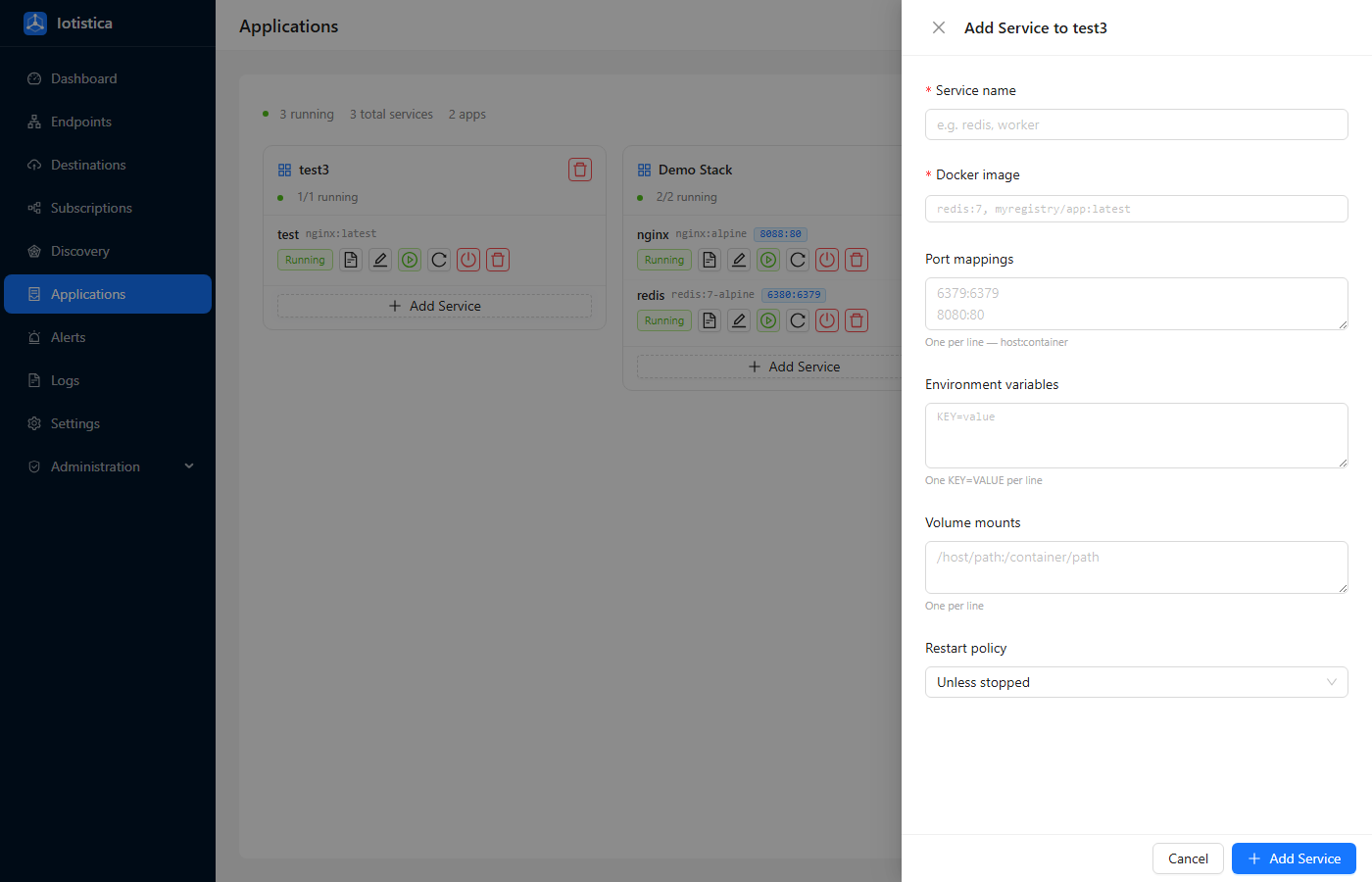
A drawer opens with the same fields as at deploy time — service name, image, ports, environment variables, volumes, and restart policy. The new container is created and started immediately after saving.
Editing a Service
Click the Edit (pencil) button on any service row to open the edit drawer pre-filled with that service's current configuration.
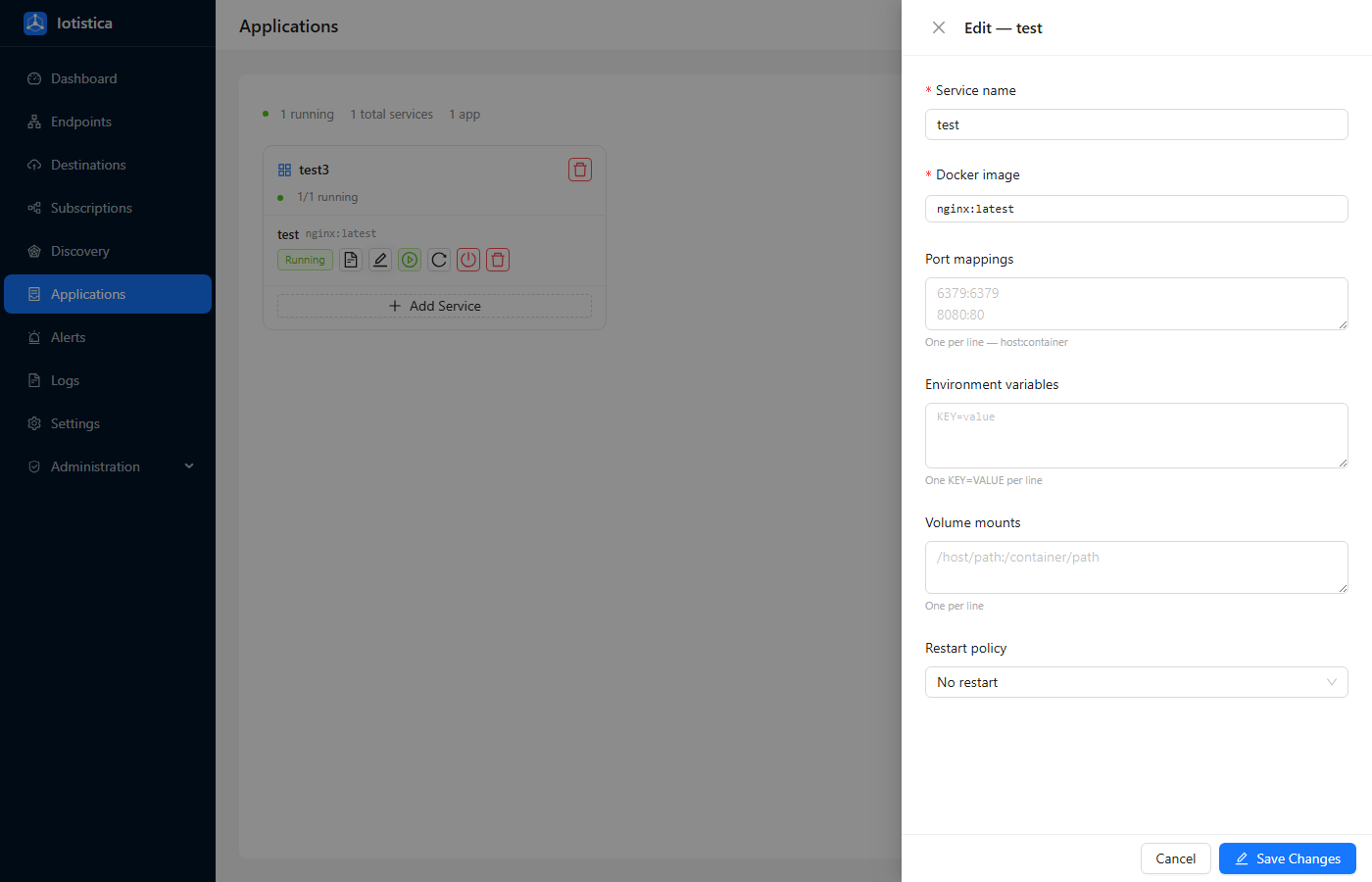
You can change any field — image, ports, environment variables, volumes, or restart policy. When you save, the agent updates the target state and recreates the container with the new configuration. The existing container is stopped and replaced.
To update an image to a newer version, change the image tag in the edit drawer (for example postgres:16 → postgres:17) and save. The agent pulls the new image and recreates the container automatically.
Removing a Service
Click the Remove (trash) button on a service row. A confirmation dialog appears before anything is deleted. Removing a service stops its container and removes it from Docker — the service is also removed from the application's configuration.
Removing an Application
Click the Remove (trash) button in the application card header. This removes all services in the application — all their containers are stopped and removed from Docker.
Docker Daemon Configuration
The agent connects to Docker via the local Unix socket (/var/run/docker.sock) by default. If you need to connect to a remote Docker daemon or use TLS, go to Settings → Docker.
| Connection Type | When to Use |
|---|---|
| Unix socket | Default. Docker runs on the same machine as the agent. |
| TCP | Docker is on a different host on the local network. |
| TCP + TLS | Remote Docker with certificate-based mutual authentication. |
Use the Test Connection button to verify the settings before saving.